
Master Canva in Minutes: Essential Step-by-Step Techniques for Stunning Graphics, Social Posts, and More
Ready to create beautiful designs without frustration? This ultimate Canva beginner guide offers easy, step-by-step instructions, a sample project, and creative ideas to bring your visuals to life—even if you've never designed before.
✨ Introduction: The Joy of Creating with Inkscape
Have you ever stared at a blank canvas, unsure where to start—but deep down, you knew you had something beautiful to create? Whether it's a party invitation, an Instagram post, or a workbook cover, the need to design something stunning (without the tech headache) is very real.
That’s where Canva steps in—an intuitive, drag-and-drop design tool that empowers everyday crafters, content creators, teachers, and entrepreneurs to become visual storytellers.
This article is your step-by-step companion, based on our Canva Beginner Workbook, created with love for those who want to stop watching tutorials and start creating magic. From setting up Canva to mastering text and images, let’s walk you through the exact steps to design your first project—and inspire a dozen more
🌿 What You’ll Need
- A computer (Windows, Mac, or Linux)
- Internet access to download Inkscape
- Inkscape software (free from Inkscape.org)
- A mouse or stylus (optional, but helpful)
- An idea or sketch for your SVG design (we’ll use a simple floral card)
- Cricut Design Space or cutting software to test your file (optional)
🛠 Canva Techniques with Hands-On Mini Projects
🎨 1. Start with a Template
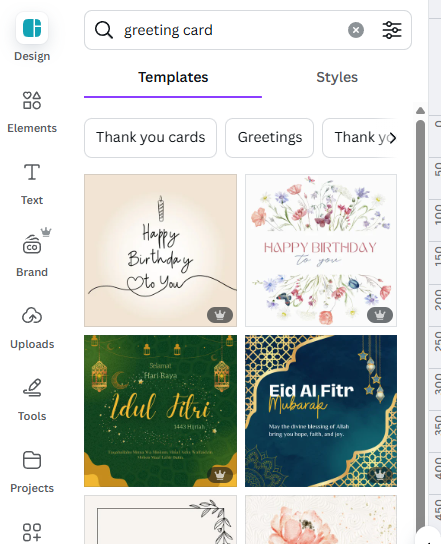
Canva has thousands of pre-designed layouts that save time and spark creativity.
Mini Project: Make a Birthday Invitation
Steps:
- Open Canva and search “Birthday Invitation” in the templates bar.
- Choose a colorful, modern template.
- Replace sample text with party details (name, date, location).
- Add a personal photo by uploading it.
- Download the finished card as a PDF or PNG.
📏 2. Use Rulers & Guides
Align items perfectly using Canva's built-in guides.
Mini Project: Create a Business Card Layout
Steps:
- Create a new design: Custom Size (3.5 x 2 inches).
- Go to File > Settings and turn on Rulers and Guides.
- Drag guides from the rulers to create 0.25" margins.
- Add text for your name, title, and contact info.
- Align all elements using the guides for a clean layout.

💡 3. Match Colors & Fonts with Styles
Canva’s “Styles” tool applies coordinated font and color palettes.
Mini Project: Design a Quote Poster
Steps:
- Create a new design (e.g., Letter size).
- Add a heading with your favorite quote.
- Click Styles in the left panel.
- Click a color/font combo to apply a professional look.
- Adjust the size and layout to highlight the quote.
🖼 4. Use Frames to Style Images
Frames shape and crop your images creatively.
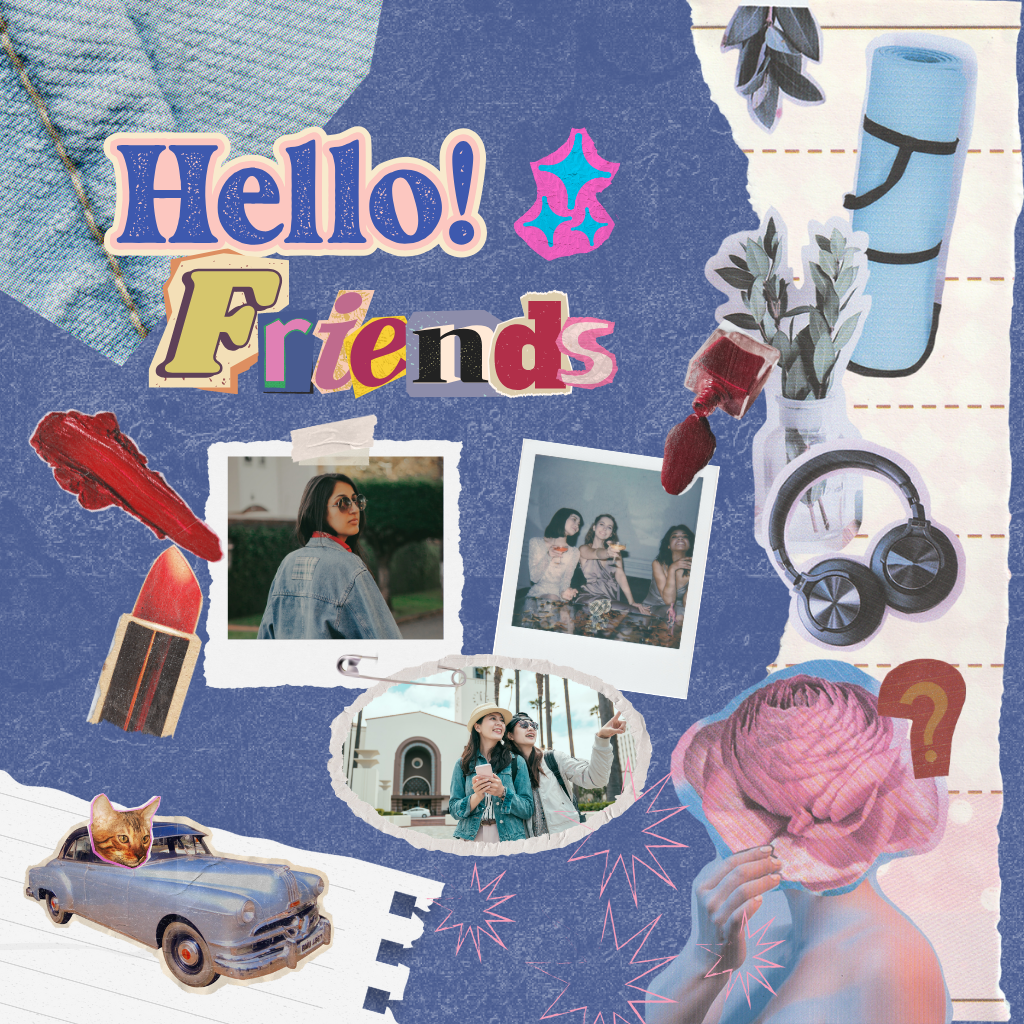
Mini Project: Create a Travel Polaroid Collage
Steps:
- Search “Polaroid Frame” in the Elements tab.
- Add 3–4 Polaroid frames to your design.
- Drag and drop vacation photos into each frame.
- Add location names underneath in handwriting-style fonts.
- Download your collage or print it as a scrapbook page.
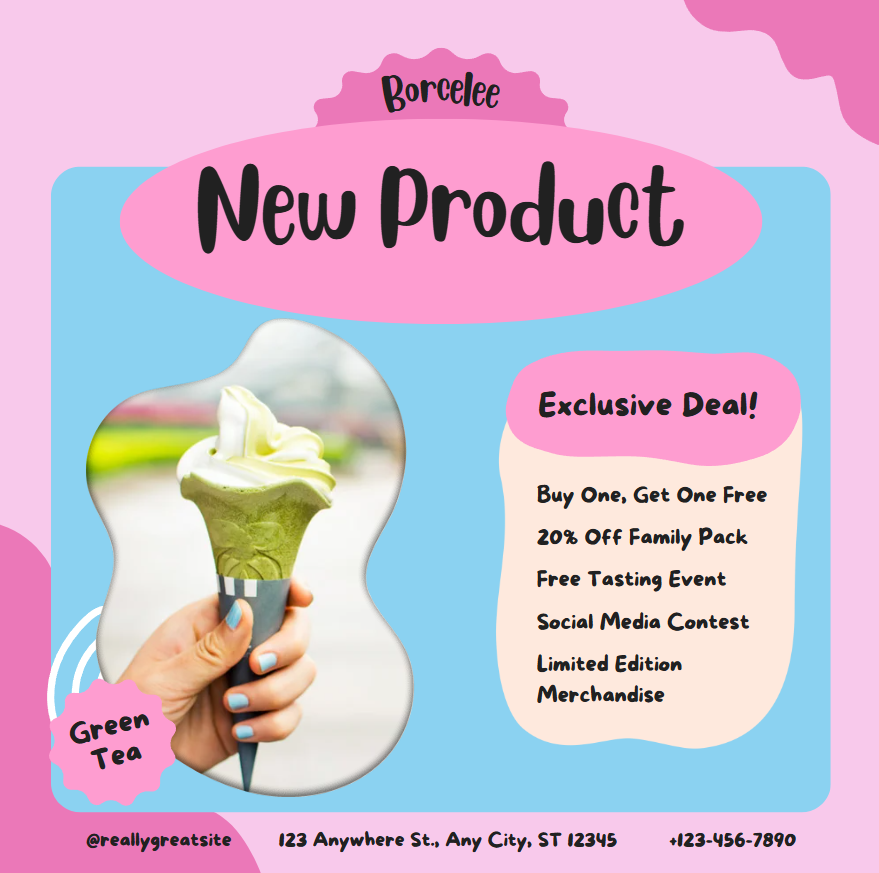
✍️ 5. Adjust Text Alignment & Spacing
Use spacing and alignment tools to improve readability and design flow.
Mini Project: Create an Event Flyer
Steps:
- Start a flyer-sized design (8.5x11").
- Add a heading, subheading, and event details in separate text boxes.
- Select text boxes and align them center.
- Use the “Spacing” tool to adjust line height and letter spacing.
- Add icons or shapes to break up sections visually.
🔗 6. Group & Resize Elements
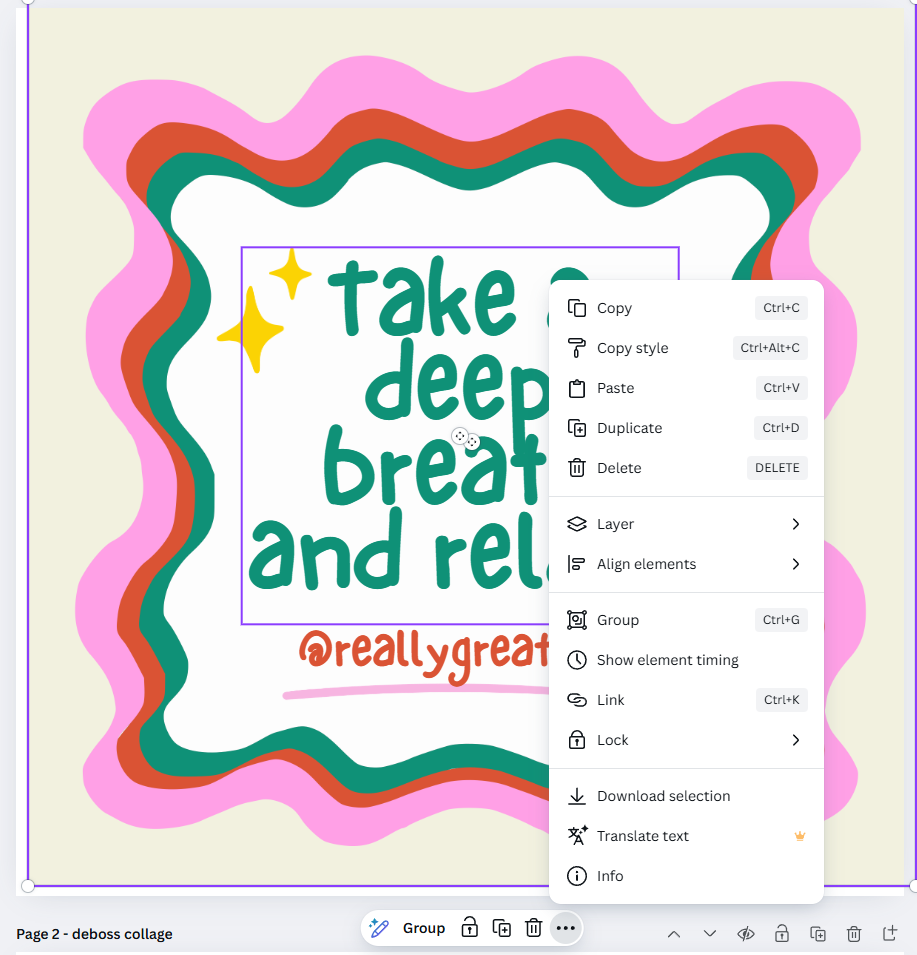
Lock multiple elements together to move and resize them as a unit.
Mini Project: Make a Motivational Graphic
Steps:
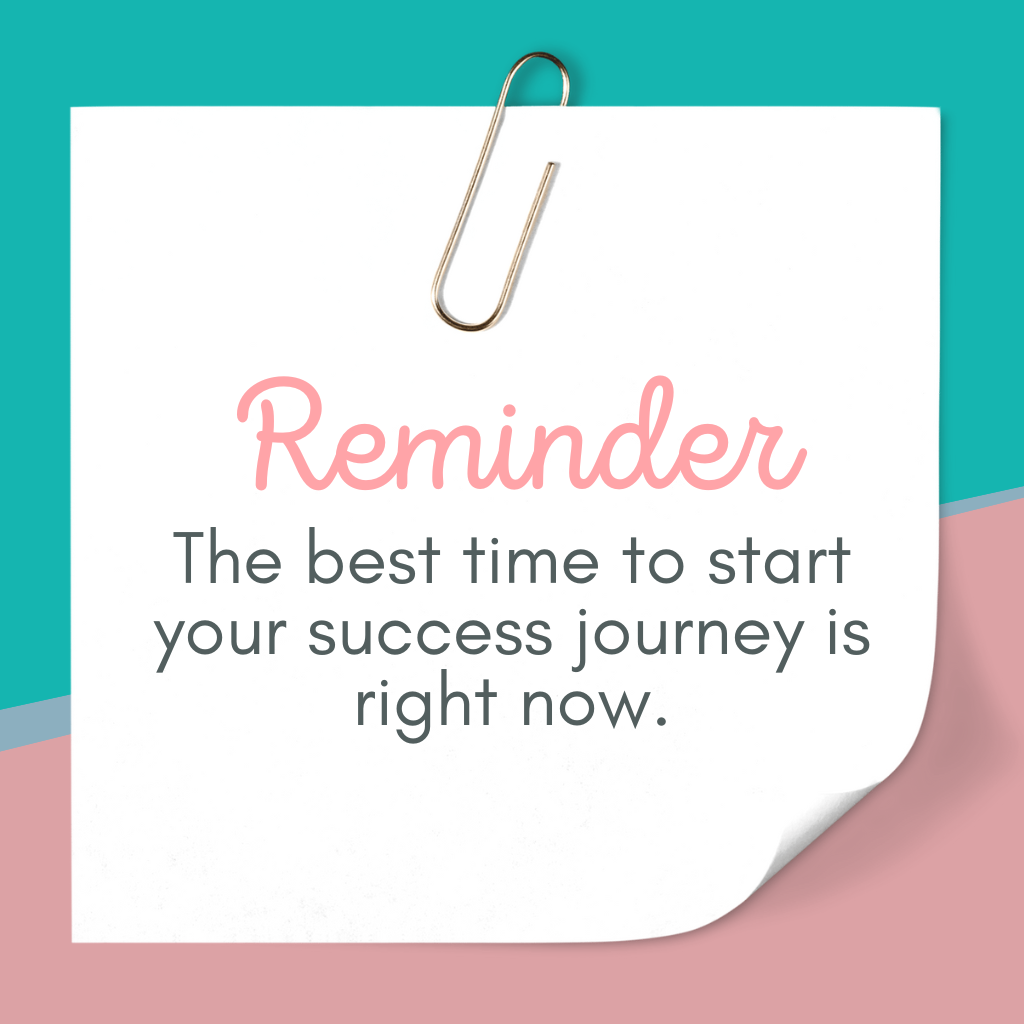
- Add a quote in a large text box.
- Insert background shapes, like a circle or rectangle behind the text.
- Hold Shift and select all the elements.
- Click Group to make them one object.
- Resize and reposition the entire design easily.
✨ 7. Add Animation for Movement
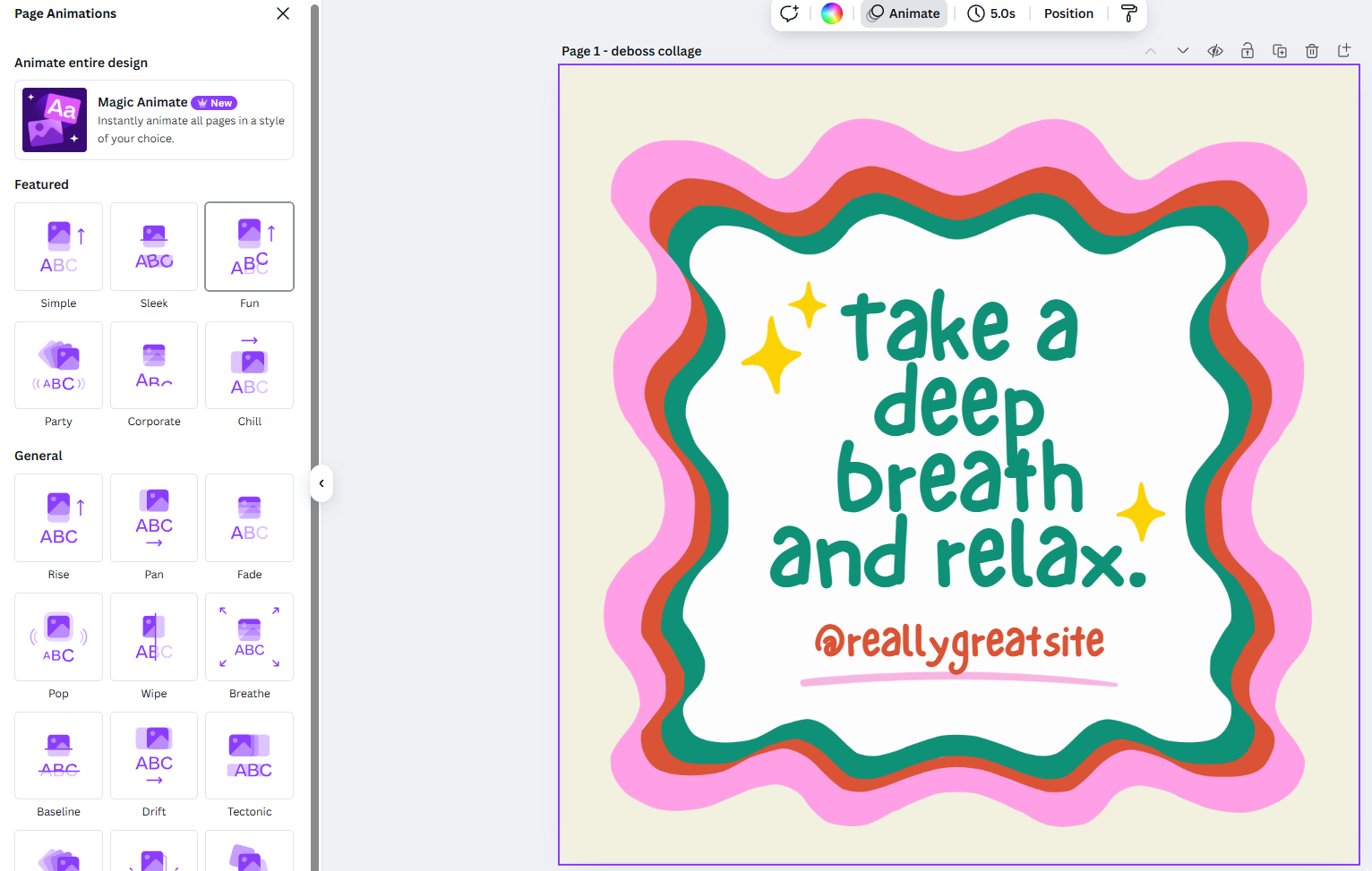
Bring your posts to life with text and object animations.
Mini Project: Make a Video Story for Instagram
Steps:
- Create an Instagram Story size design (1080x1920 px).
- Add your message in large text.
- Insert fun graphics or emojis.
- Click an object, then click Animate.
- Choose animations like Rise, Pop, or Tumble.
- Preview and download as an MP4.
🌟 Final Thoughts
Canva isn’t just a tool—it’s a gateway to creative freedom. With just a few clicks, you can turn ideas into visual stories that resonate, inspire, and get noticed. Whether you're crafting for fun or building a brand, every skill you build here is a step toward mastering your voice in the world of design.
So go ahead—start messy, play often, and make something that lights you up inside.
🎨 More Project Ideas with Canva Techniques
Printable Planner Page Use templates, text boxes, and shapes to create a functional daily spread.
Greeting Card Design Combine frames, fonts, and graphics for a handmade look.
YouTube Thumbnail Add bold fonts, overlays, and dramatic images to boost video clicks.
Recipe Card Use grids and custom sizes to create printable cards for your kitchen.
Digital Vision Board Search for dream images, quotes, and icons. Group and animate your layout.
Business Logo Choose a circle frame, bold text, and your favorite font to get started.
#CanvaDesign, #DesignTutorial, #CanvaTips, #DigitalDesign, #GraphicDesignBeginners, #LearnCanva, #VisualStorytelling, #DIYDesign, #DesignTools, #CreativeJourney
You can grab an Access membership at anytime to use this feature.

