

Master Cricut’s Combine Menu tools—Unite, Subtract, Intersect, and Exclude—to craft custom designs with confidence, precision, and creative flair.
Struggling to understand how Cricut Design Space’s Combine menu works? This step-by-step guide demystifies Unite, Subtract, Intersect, and Exclude so you can create stunning layered projects, monograms, stencils, and unique shapes with ease.
🎨 Introduction
If you’ve ever felt frustrated using Cricut Design Space’s Combine menu—wondering why your shapes aren’t merging the way you expect—you’re not alone. Many crafters use Weld and Slice but stop short of exploring the powerful tools hidden in Combine: Unite, Subtract, Intersect, and Exclude. In this blog, we’ll break each of these down with clear steps, examples, and creative applications to help you level up your Cricut crafting experience. Whether you're making custom stencils, layered vinyl decals, or paper cut-outs, mastering the Combine menu opens up a world of new design possibilities!
One thing to remember is the fact that when using the Combine menu - the back layer color is the dominant color.
🧩 1. Unite – Merge with Flexibility
What It Does: Similar to Weld but reversible. It merges selected shapes into one unified shape.
Why Use It: Perfect for creating complex new designs without permanent commitment.
How to Use:
- Select two or more shapes.
- Click Combine > Unite in the bottom right of the Layers panel.
- The shapes will merge into one color based on the bottom layer.
- You can Undo Unite later—even after saving!
💡 Pro Tip: Use Unite instead of Weld when experimenting. It’s non-destructive!

✂️ 2. Subtract – Cleaner Cuts, Less Cleanup
What It Does: Removes overlapping parts of top layers from the base layer.
Why Use It: Acts like Slice but eliminates the leftover cut pieces and works with multiple layers at once.
How to Use:
- Select a base shape.
- Add shapes on top where you want to subtract.
- Select all layers.
- Click Combine > Subtract.
💡 Creative Use: Make smiley faces or decorative frames with clean cutouts in one click!

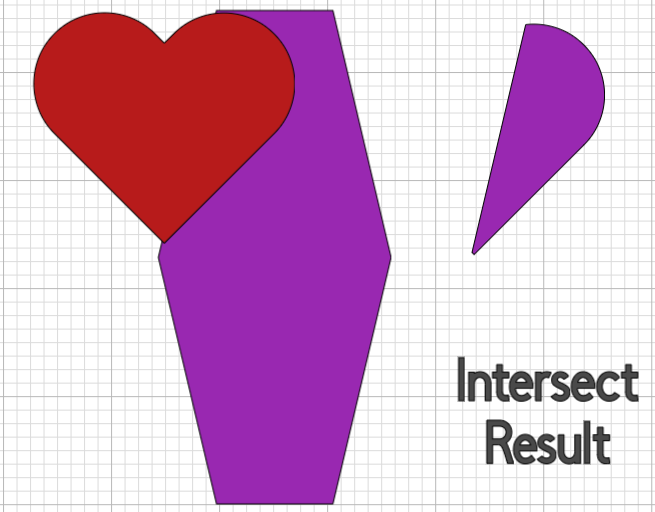
🟰 3. Intersect – Keep Only the Overlap
What It Does: Retains only the part where all selected shapes overlap.
Why Use It: Create unique icons, tags, or peek-through layers by isolating the intersection.
How to Use:
- Stack your shapes with intentional overlap.
- Select all.
- Click Combine > Intersect.
💡 Creative Idea: Use Intersect to make custom tabs or tags that perfectly match specific areas of your designs.
🚫 4. Exclude – Cut the Overlap, Keep the Edges
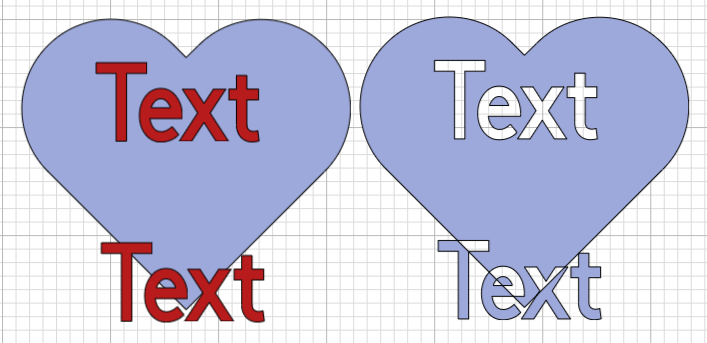
What It Does: Removes the overlapping area of all selected shapes.
Why Use It: Useful for stencils, monograms, or creating framed windows in cards.
How to Use:
- Select multiple overlapping shapes.
- Click Combine > Exclude.
- Only the non-overlapping areas will remain.
💡 Project Idea: Make a layered monogram with initials inside a ring—Exclude cuts the ring, and your letters stay intact!
🎨 CREATIVE PROJECT IDEAS USING COMBINE MENU
🎯 1. Custom Monogram Tags (using EXCLUDE + TEXT)
Goal: Create a circle tag with initials cut out from the center.
Steps:
- Open Cricut Design Space and insert a circle shape.
- Resize the circle to about 3" in diameter (ideal for tags).
- Change its color for visibility (e.g., light blue).
- Add text (initials like “BD”) using the Text tool.
- Choose a bold, readable font (e.g., Cricut Sans or Impact).
- Resize and center the text over the circle.
- Select both the circle and text.
- Go to Combine > Exclude.
- You now have a tag with initials “punched out.”
- Add a small hole at the top of the circle (optional): Insert a small circle (~0.1"), position it, then Subtract it.
- Cut from cardstock or vinyl and attach to gifts or packaging!

✂️ 2. Patterned Stencils (using SUBTRACT + SHAPES)
Goal: Make a custom stencil with repeating cut-out shapes (e.g., stars).
Steps:
- Insert a rectangle shape (e.g., 6" x 8").
- Change its color (e.g., light gray) — this is your stencil base.
- Insert a star (or another shape).
- Resize the star to about 1" width.
- Duplicate the star multiple times to create a pattern (e.g., rows of 3-4).
- Use Align and Distribute Horizontally/Vertically to space them evenly.
- Group the pattern of stars.
- Select both the rectangle (base layer) and the group of stars.
- Click Combine > Subtract.
- You’ll now have a stencil design with star cut-outs.
- Cut from stencil material (like acetate or Mylar) and use with paint or ink!

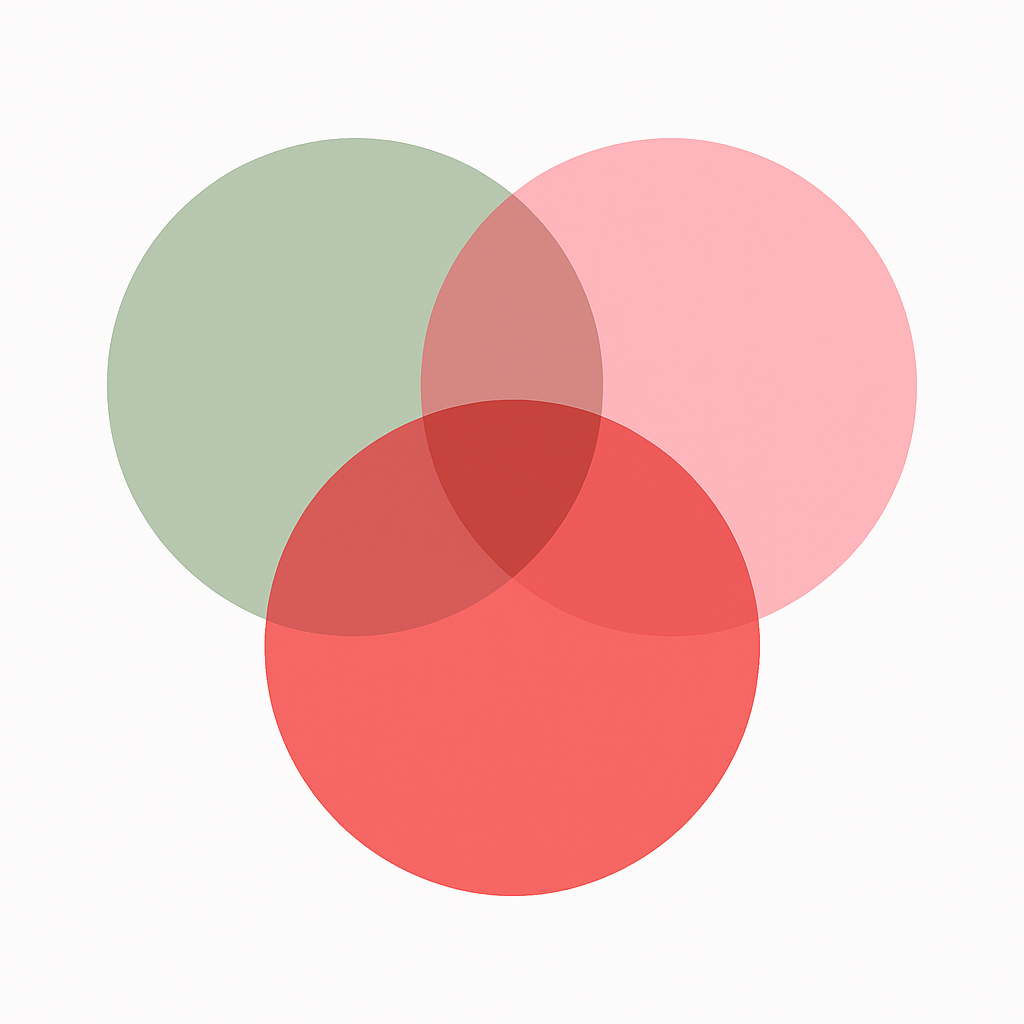
🔄 3. Venn Diagram-Style Layering (using INTERSECT)
Goal: Create an overlapping visual that shows the intersection of two or more circles (great for cards or journals).
Steps:
- Insert three circle shapes.
- Make them identical size (e.g., 3").
- Assign each a different color: green, pink, and red.
- Overlap them partially to create a “Venn diagram” look.
- Select all three and Align > Center Vertically.
- Select all three circles.
- Click Combine > Intersect.
- Only the overlapping parts will remain — perfect for abstract designs or highlighting shared themes.
- Use this shape as a background element or a cut-out piece in scrapbook layouts.

🖼 4. Decorative Frames (using SUBTRACT for corner designs)
Goal: Create a rectangle frame with custom shapes cut from the corners.
Steps:
- Insert a rectangle (e.g., 5" x 7") — your frame base.
- Insert a second rectangle, make it smaller (e.g., 4" x 6"), and center it inside.
- Select both rectangles and click Slice to create a hollow frame.
- Delete the center piece and keep the frame.
- Add decorative elements like hearts, stars, or flourishes in each corner.
- Resize and position them at the corners of your frame.
- Select all corner elements and the frame.
- Click Combine > Subtract.
- The decorative shapes will now be “punched out” of the corners.
- Cut from patterned paper or solid cardstock for a beautiful frame effect.

🔚 FINAL THOUGHTS
Learning to use the Combine menu in Cricut Design Space gives you greater creative freedom and precision. Whether you’re working with cardstock, vinyl, or layered print-then-cut projects, these tools allow you to customize every detail. Don’t stop at Weld or Slice—embrace the full power of Unite, Subtract, Intersect, and Exclude. With a bit of experimentation, you'll be crafting like a pro in no time.
#CricutCombineMenu #CricutDesignSpaceTips #CricutUnite #CricutSubtract #CricutIntersect #CricutExclude #CricutTutorial #CricutCrafts #PaperCrafting #DesignSpaceMagic #CricutMonogram #LayeredCricutDesigns
You can grab an Access membership at anytime to use this feature.

