
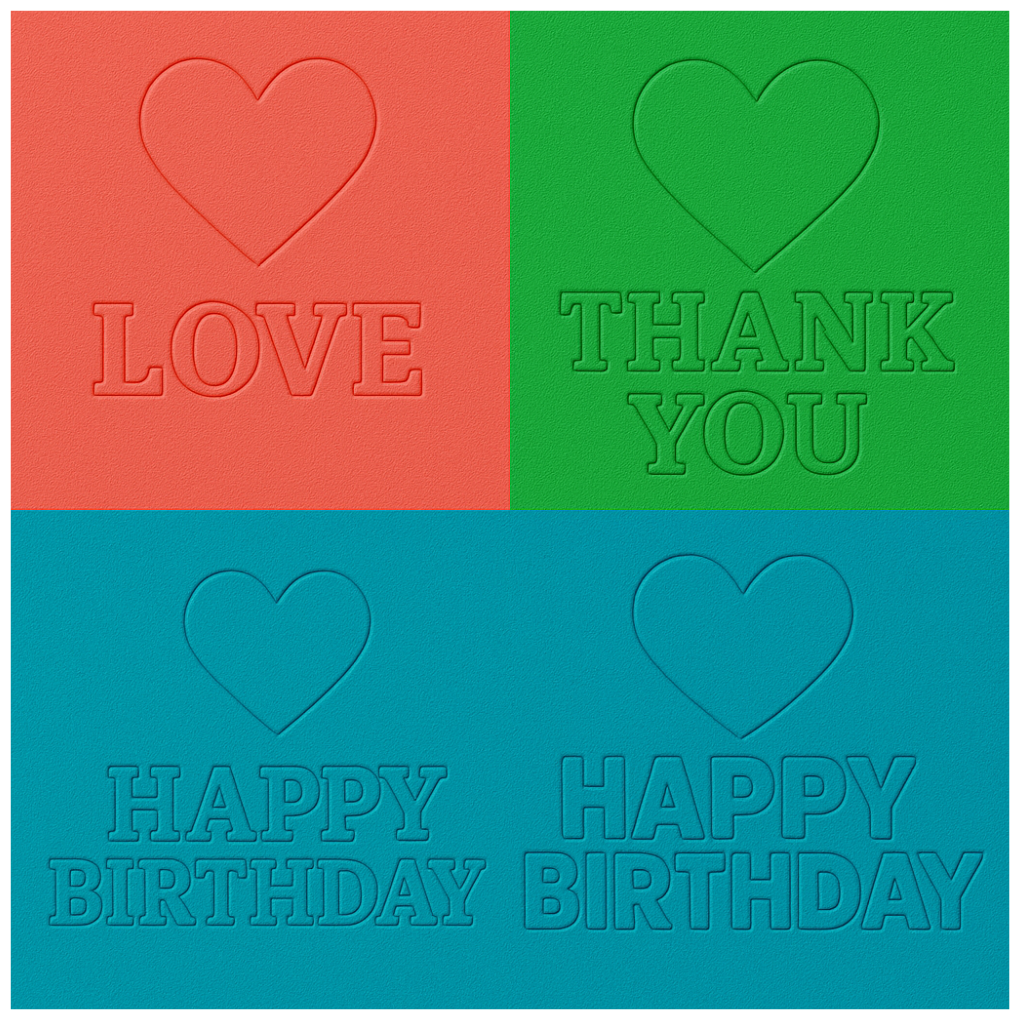
Master easy and advanced debossing techniques in Cricut Design Space—no Maker 3 required!
Learn how to create beautiful, puffy debossed designs with your Cricut machine using basic tools like the scoring stylus, foil tip, or Maker 3 debossing tool. Perfect for cards, journals, and personalized crafts.
✨ Introduction: Make Your Designs Stand Out
Debossing adds a magical, tactile texture to your paper crafts—think of it as carving a design into your material, leaving a luxurious indented effect. Whether you own a Cricut Maker 3 or are working with a more budget-friendly Explore series, there are creative ways to get impressive results. In this guide, we’ll walk you through three foolproof methods to achieve beautiful debossed and puffy embossed effects, plus helpful tips to keep your layers secure, your mat sticky, and your creativity flowing.
🛠️ What You’ll Need:
- Cricut Machine (Maker 3, Explore Air, or similar)
- Cricut Design Space (latest version)
- Thick and thin cardstock (8.5" x 11")
- Optional tools:
- Scoring stylus
- Scoring wheel
- Debossing Tip (Tool #21)
- Foil Transfer Tip
- Sticky cutting mat or repositionable glue (Aleene’s Tack-It, Pixie Spray, or Sticky Mat Adhesive)
- Painter's tape or removable adhesive dots (optional for paper alignment)
🪄 Step-by-Step: 3 Cricut Debossing Techniques
✅ 1. Score Line Debossing (No Debossing Tool Needed!)
Perfect for Cricut Explore users
- Open Design Space and insert a shape or text (e.g., a heart and the word LOVE).
- Change the operation type to “Score.”
- Duplicate the score line 4–5 times for a deeper indent.
- Select and align all copies, then group and attach them.
- Cut on thick cardstock with “More Pressure” selected for better depth.
- You now have a faux-debossed design without needing special tools!
💡 Tip: Use Control + D to quickly duplicate lines.
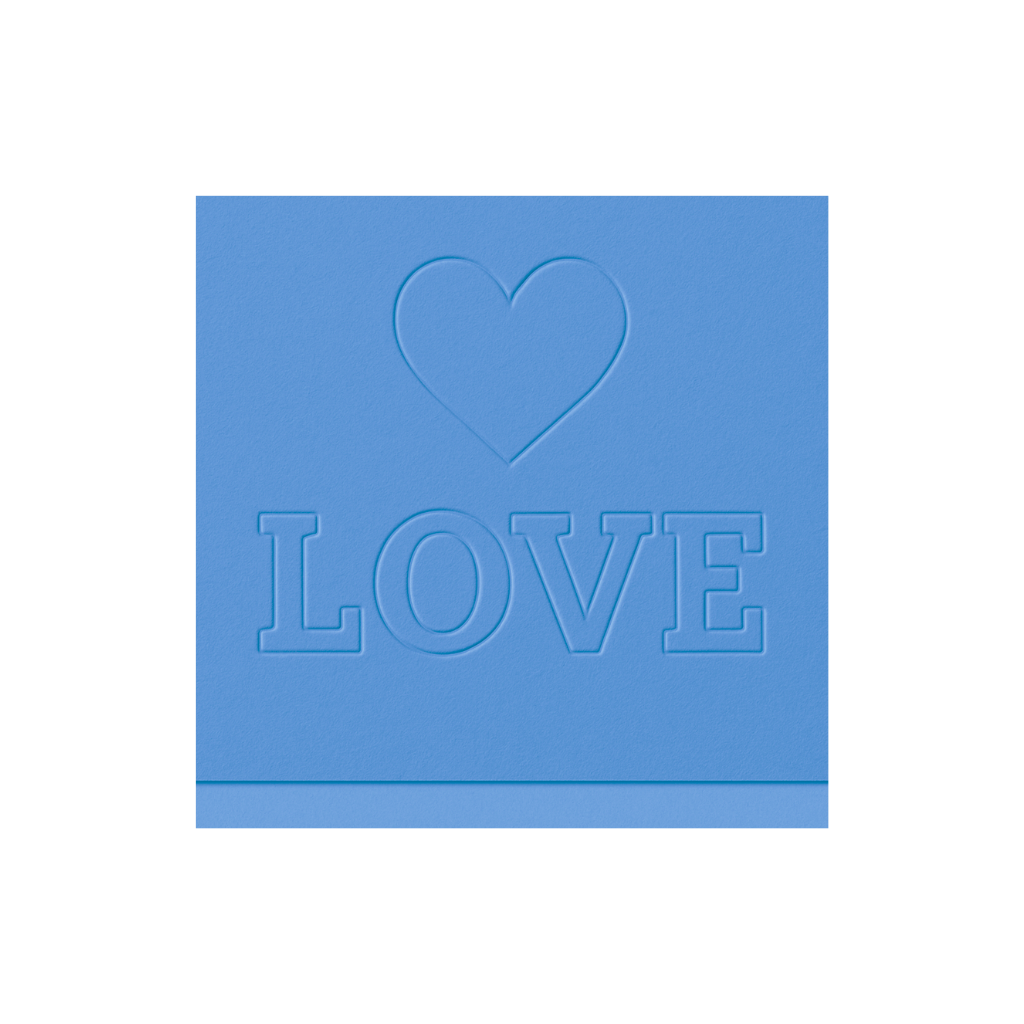
✅ 2. Basic Debossing with the Cricut Maker 3
For users with the official Debossing Tip (#21)
- Type your text in Design Space (e.g., LOVE).
- Choose a thick, script or chunky font (like “Chunk Five”—included in the freebie).
- Adjust letter spacing or ungroup letters to manually overlap.
- Weld the text into one solid shape.
- Add a heart or shape behind the text if desired.
- Change the operation to “Deboss.”
- Attach and send it to your machine.
💡 Result: An indented outline of your design—subtle and elegant!

✅ 3. Puffy Emboss Effect Using Cut + Deboss
Get raised letters with deep borders—our most dimensional look!
- Create your design and choose a thick, rounded font.
- Weld the text together for a single cut shape.
- Cut the design out of thick cardstock and leave it stuck to your mat.
- Place a clean sheet of paper over the cutout on the mat (aligning using measurements).
- In Design Space, use the "Offset" tool to create an outline around your text.
- Set the offset layer to “Deboss.”
- Align the deboss over your cutout and run it through the machine.
💡 Why it works: The cutout underneath creates a raised design while the deboss presses the outer edge—giving a puffy, professional look.

💡 Final Thoughts: Creativity Doesn’t Require Costly Tools
Whether you own the latest Cricut tools or just a scoring stylus, you can still create stunning embossed effects with a little creativity and layering. Debossing adds sophistication to your cards, journals, affirmations, and home decor. Don’t forget—you can find the fonts and affirmations used in this tutorial in the free Crafty Affirmations bundle.
🔗 Grab Your Free Crafty Affirmations Bundle
#cricutdebossing #cricutembossing #cricutpuffyletters #debosswithoutmaker #cricutexploreembossing #cardmakingwithcricut #diycricutprojects #howtousedebosstip #scoringstylushack #cricutdesignspacetutorial
You can grab an Access membership at anytime to use this feature.


3 replies to "3 Genius Ways to Deboss with Cricut (Even Without the Fancy Tools!)"
Where do I find the free font?
Go to http://bettesmakes.com/resourcelibrary/ – you should find it in the list of assets
Found it!! Thanks for such cute resources!