
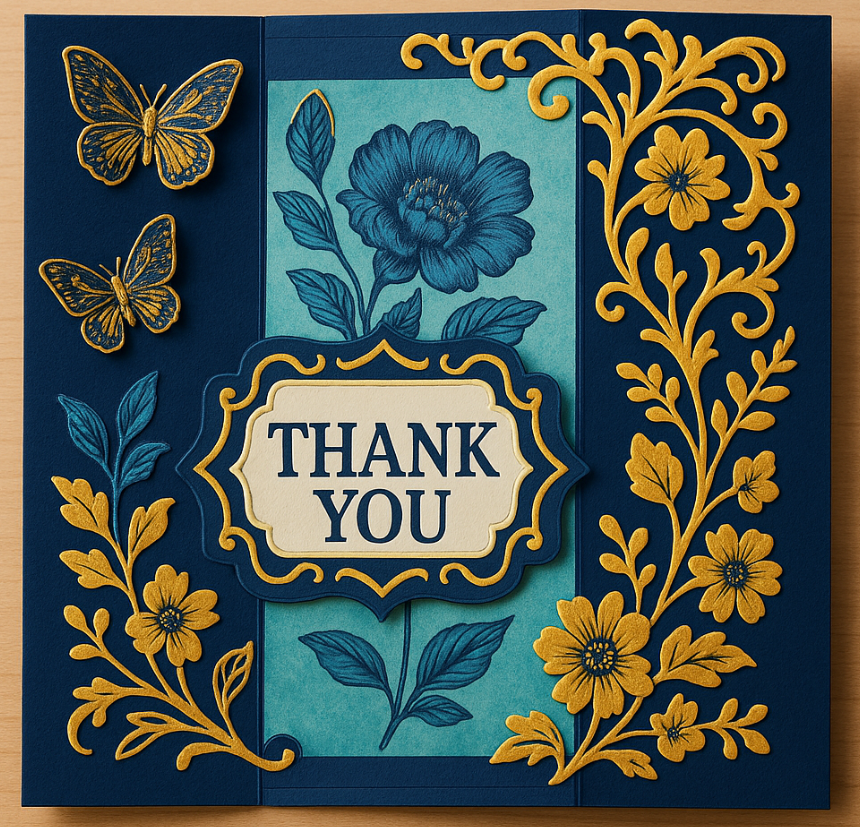
Discover the Easy Way to Create Beautiful Handmade Cards Using Digital Stamps and Die Cuts—No Physical Tools Required!
Learn how to use digital stamps and digital die cuts to design show-stopping handmade tri-fold cards. This step-by-step tutorial covers everything from choosing your digital files to crafting a gorgeous finished piece—perfect for Cricut crafters and digital designers alike.
✨ Introduction: Why Digital is the Future of Paper Crafting
Have you ever wished you could access an endless library of stamps and dies—without the clutter? Digital stamps and die cuts are transforming the way crafters create, giving you limitless possibilities with zero physical storage. Whether you’re working with a Cricut or simply love designing digitally, these powerful tools unlock a new world of creativity.
Gone are the days of waiting for products to ship or storing bulky tools. With digital stamps and die cuts, you can design, resize, recolor, and cut exactly what you want—when you want it. It’s eco-friendly, space-saving, and perfect for anyone who loves fast, fabulous results.
💭 Why Use Digital Stamps & Dies?
✅ Instant Access: Download and use files immediately.
✅ Customizable: Resize, recolor, or layer elements however you wish.
✅ Budget-Friendly: One-time purchases with endless use.
✅ No Physical Storage: Say goodbye to clutter!
✅ Cricut-Compatible: Most files (PNG, SVG) are ready for Design Space.
✂️ Project Tutorial: How to Make a Tri-Fold Card Using Digital Stamps & Die Cuts
🧰 What You’ll Need:
- Computer or tablet
- Cricut Design Space or Silhouette Studio
- Digital stamp file (PNG or transparent background preferred)
- Digital die cut file (SVG format)
- White or colored cardstock (8.5" x 11")
- Scoring tool or bone folder
- Glue or double-sided tape
- Embellishments (ribbon, sequins, ink, etc.)
🛠 Step-by-Step Instructions
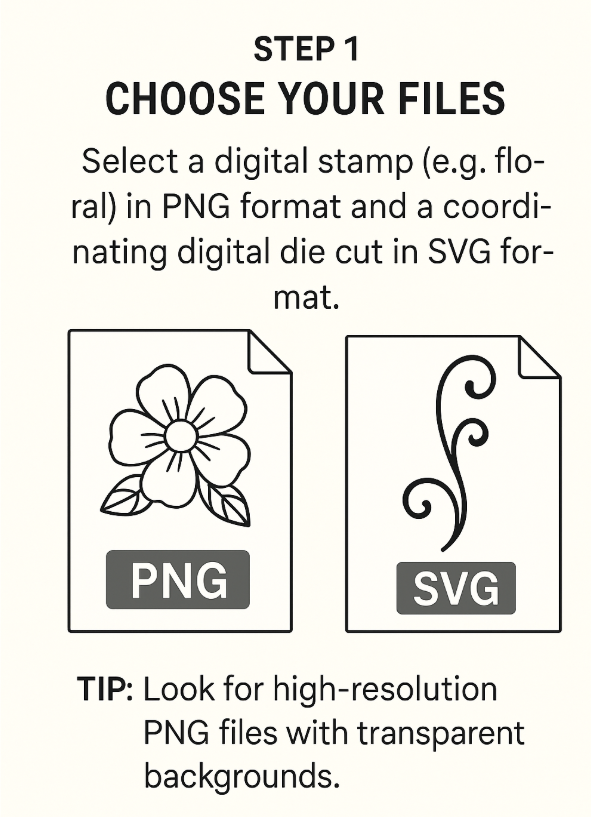
Step 1: Choose Your Files
- Select a digital stamp (e.g., a floral design or greeting) in PNG format.
- Choose a coordinating digital die cut shape (e.g., frame, flourish, or border) in SVG format.
- Download and save both files to your computer.
Action: Select a digital stamp (like a floral motif or scripted sentiment) in PNG format and a coordinating digital die cut in SVG format.
Tip: Look for high-resolution PNG files with transparent backgrounds—these layer beautifully and print crisp, especially for detailed artwork.
Step 2: Upload to Cricut Design Space
- Open Design Space and click “Upload.”
- Upload both the stamp (as a Print Then Cut image) and the SVG die cut.
- Add them to your Canvas.
Action: Open Design Space → “Upload” → Import both files (PNG as a Print Then Cut, SVG as a cut file).
Tip: Name your files clearly (e.g., "RoseStamp_TriFold.png") so you can reuse and locate them easily later in larger projects.
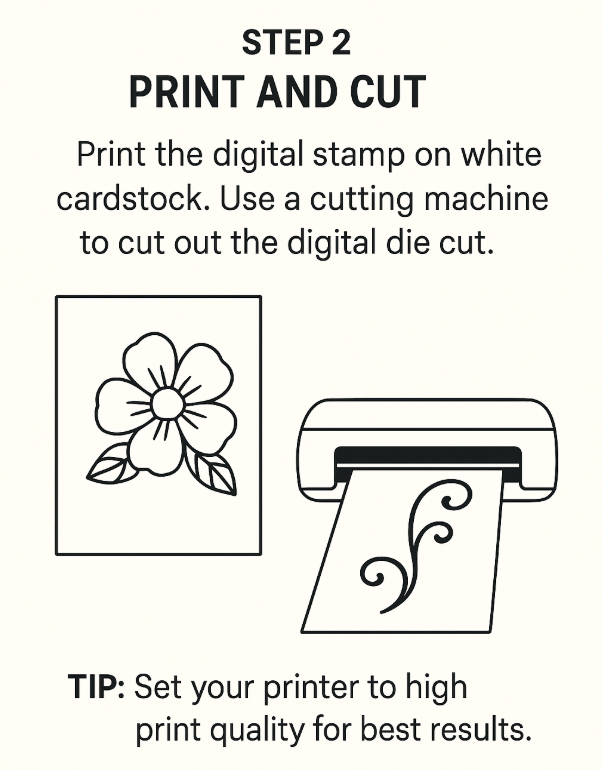
Step 3: Design Your Layout
- Create a new project sized to an 8.5" x 5.5" rectangle (for an A2 tri-fold card).
- Divide into three vertical sections (each panel should be approx. 2.83" wide).
- Place your digital stamp image on one or two panels and layer the die cut on the front flap.
- Resize and arrange elements until your layout looks balanced.
Action: Create a rectangle sized to 8.5" x 5.5" on your canvas. Divide it into three equal panels (approx. 2.83" each). Arrange your stamp and die cut as desired.
Tip: Use guidelines or the "Align" tool in Design Space to perfectly center and space your elements—this makes your final card look polished and professional.
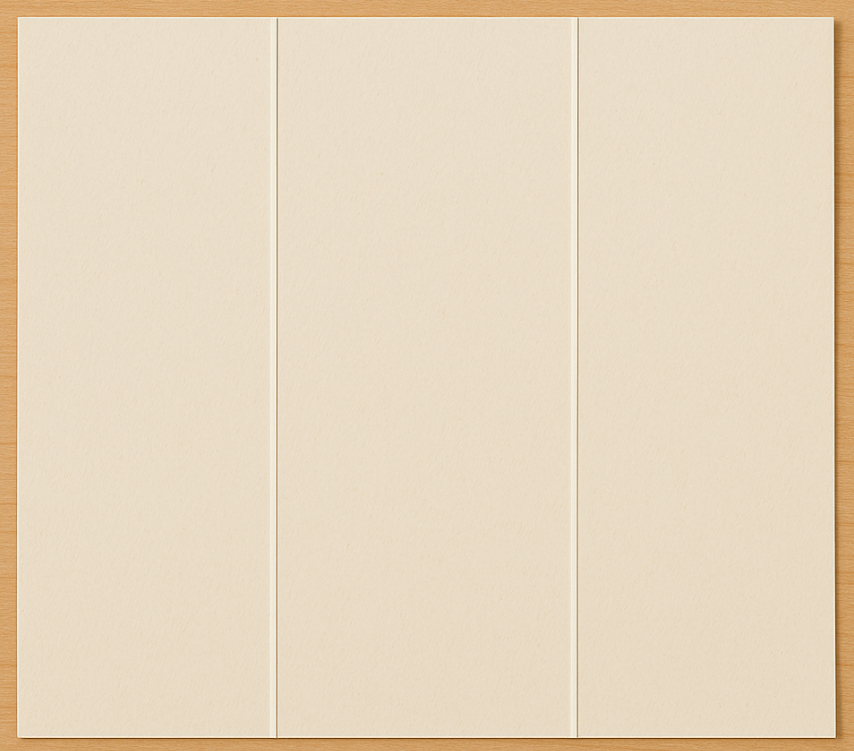
Step 4: Print Then Cut the Digital Stamp
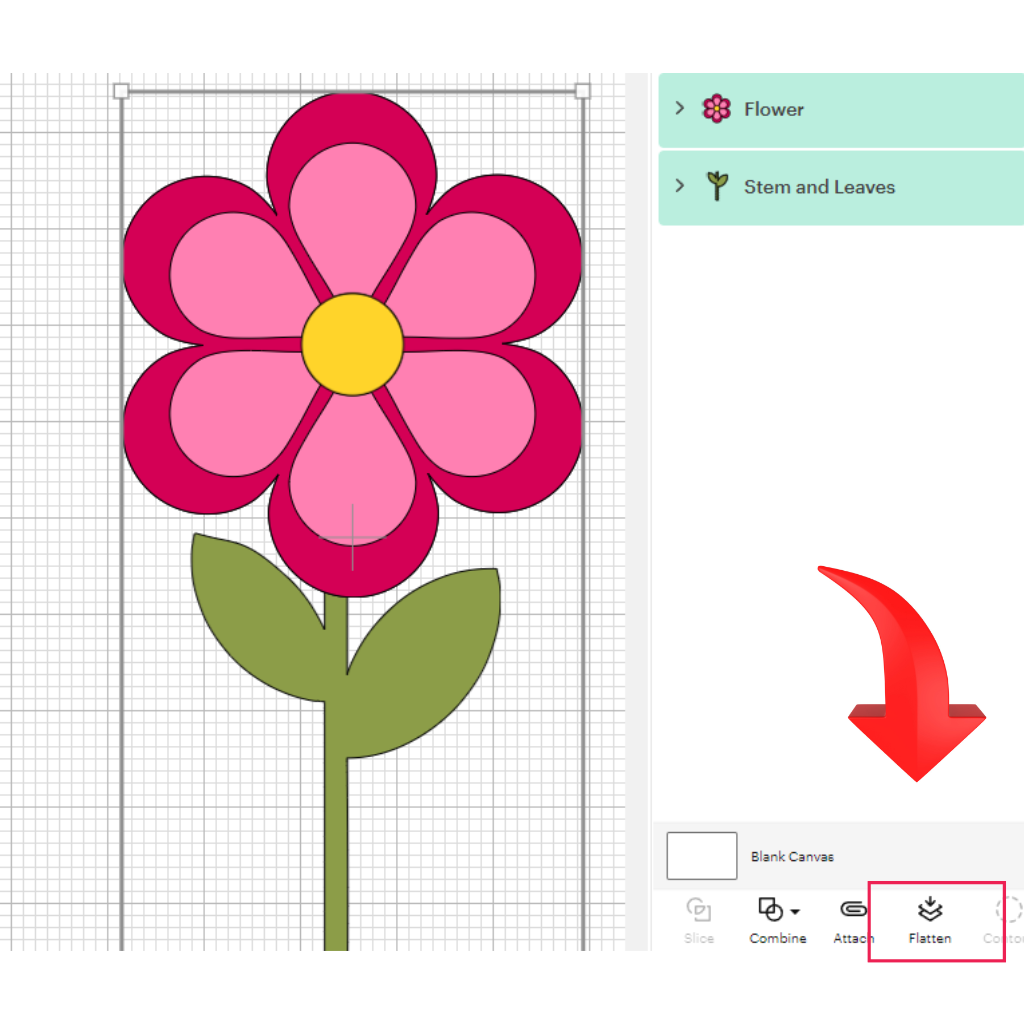
- Select the stamp image and choose “Flatten” to make it print-ready.
- Click “Make It” and print using your home printer on white cardstock.
- Cut using your Cricut with the “Print Then Cut” feature.
Action: Flatten the PNG file, then click “Make It.” Print on white cardstock and cut with your Cricut using Print Then Cut.
Tip: For vibrant colors, adjust your printer settings to “Best Quality” and use photo matte cardstock for stunning results.
Step 5: Cut the Digital Die Cut
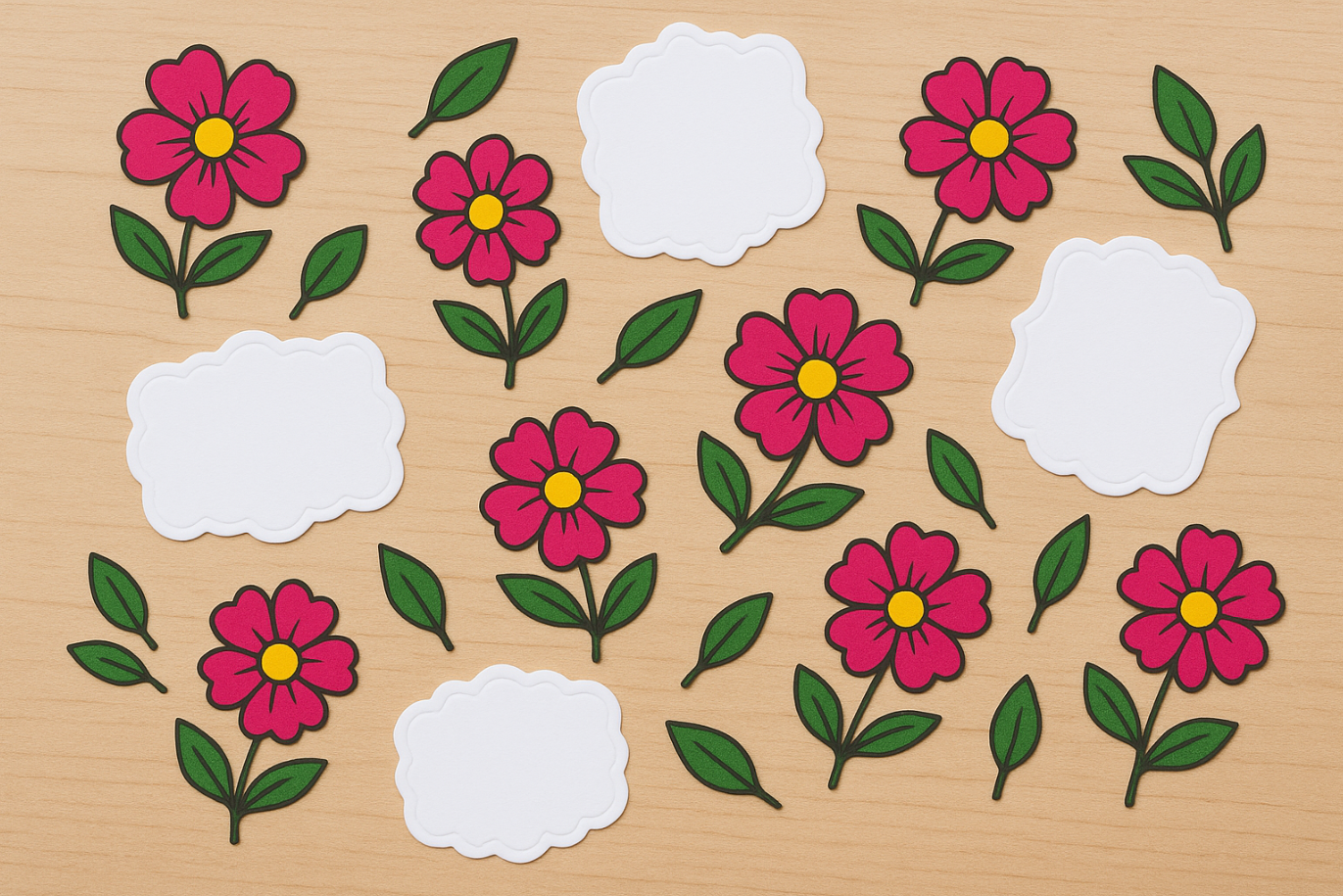
- Use your Cricut to cut the SVG die cut from colored cardstock.
- Optional: Use foam dots to add dimension.
Action: Use colored or patterned cardstock for the SVG element and cut it with your Cricut.
Tip: To add dimension, cut the same die shape twice and stack them using foam tape—it adds depth without overwhelming the design.
Step 6: Score and Fold
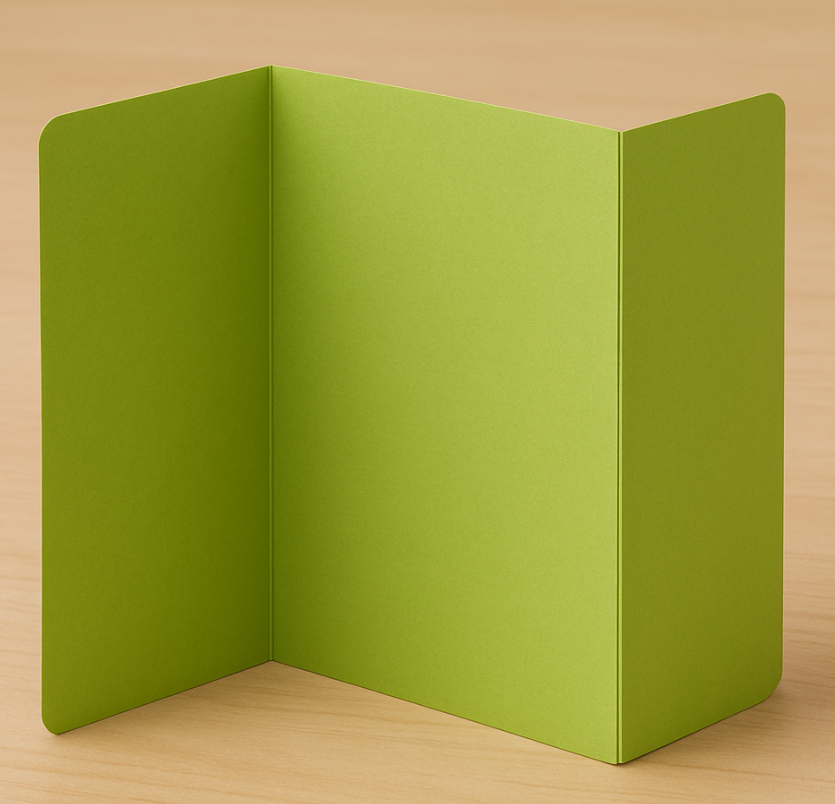
- Score the base card at 2.83” and 5.66” from the left edge.
- Fold the card into thirds like a pamphlet, with the right panel folding in first and the left over it.
Action: Score the card base at 2.83" and 5.66", then fold in a Z-pattern (right panel first, then left).
Tip: Use a scoring stylus or bone folder to get clean, crisp folds that won’t crack your cardstock—especially important for thick paper.
Step 7: Assemble the Card
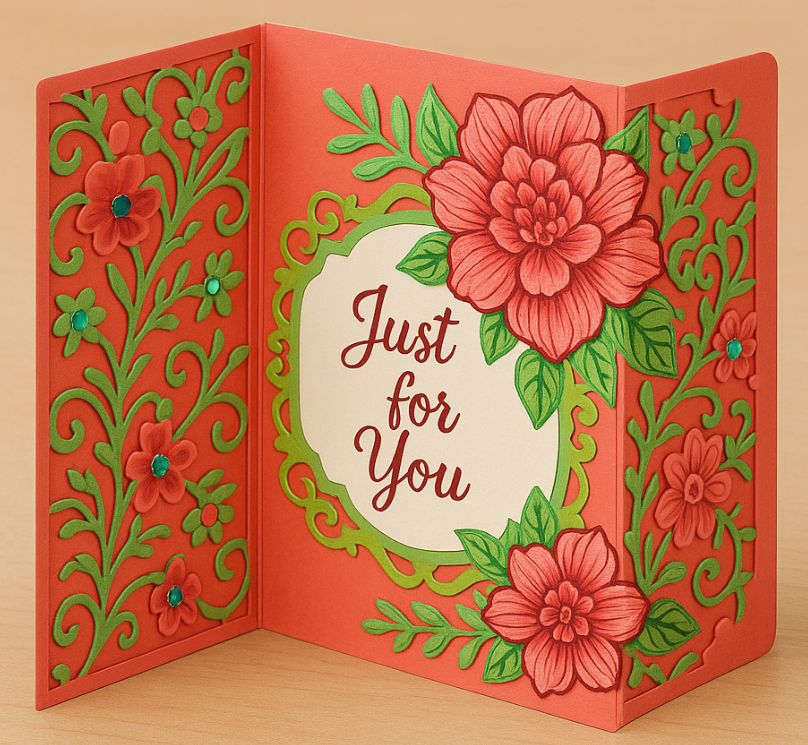
- Adhere your print-and-cut digital stamp to the center or right panel.
- Glue or tape the digital die cut to the front flap.
- Add any extra embellishments (ink edges, glitter glue, washi tape, etc.).
Action: Adhere your printed digital stamp to the center or right panel. Attach the digital die cut to the front flap. Embellish as desired.
Tip: Dry-fit everything before gluing. This helps ensure perfect alignment and lets you decide if you want to add extras like inked edges, stitching, or glitter.
🌟 Final Thoughts
Digital stamps and die cuts open a creative universe that blends tech and tradition. Whether you're new to crafting or a seasoned Cricut pro, learning how to use these files gives you a modern edge—without sacrificing the charm of handmade. It’s time to go digital and let your designs shine without limits.
🎨 More Projects to Try with Digital Stamps & Die Cuts
Shaker Cards: Use digital dies for the window and digital stamps for sentiments inside.
Scrapbook Embellishments: Print your digital stamps on sticker paper.
Gift Tags: Cut digital dies into tag shapes and layer stamped messages.
Wall Art: Combine multiple stamps and die cuts for a digital collage.
Planner Stickers: Turn stamp designs into decorative sticker sets
#digitalstamping, #digitaldiecuts, #CricutProjects, #TriFoldCard, #PrintThenCut, #DigitalCraftFiles, #HandmadeCards, #PaperCrafts, #CardMakingTutorial, #SVGCrafting
You can grab an Access membership at anytime to use this feature.

