
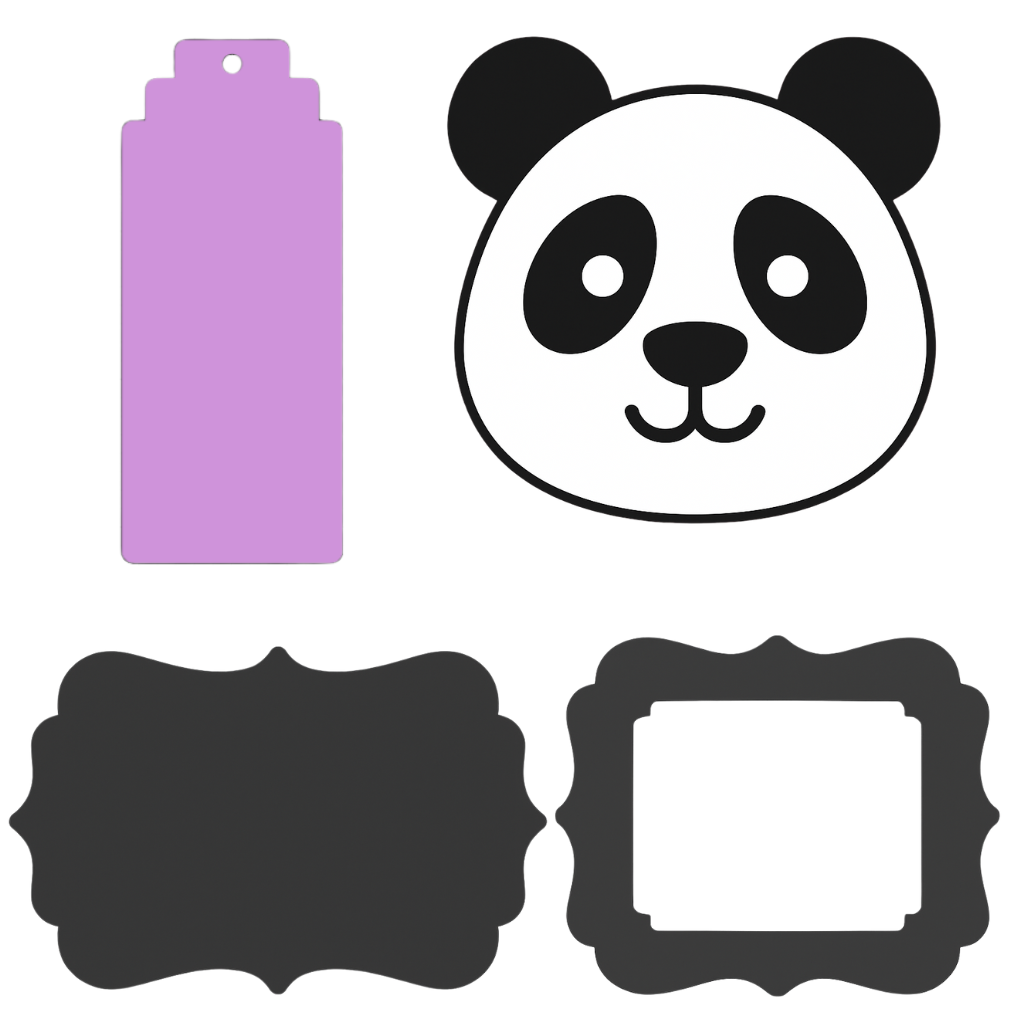
Discover how to craft custom designs in Cricut Design Space by combining and slicing basic shapes—no need to buy premium files!
Master Cricut Design Space with this easy guide to creating complex shapes using only the free tools. Learn how to slice, align, weld, and shape your way to amazing designs without spending a dime.
🎨 Introduction: Why Creating with Basic Shapes Is a Game-Changer
Think you need fancy SVGs or premium Cricut Access files to make standout designs? Think again! One of the best-kept secrets in Cricut Design Space is the incredible versatility of basic shapes. Whether you're crafting a panda face, cute tags, or custom die-cut elements, you can do it all with the free shape tools—no upgrades required. In this tutorial, we’ll walk you through exactly how to create complex designs with nothing more than circles, squares, and triangles. Get ready to unlock your creativity!
🛠️ Step-by-Step Guide: Creating Shapes with Shapes in Cricut
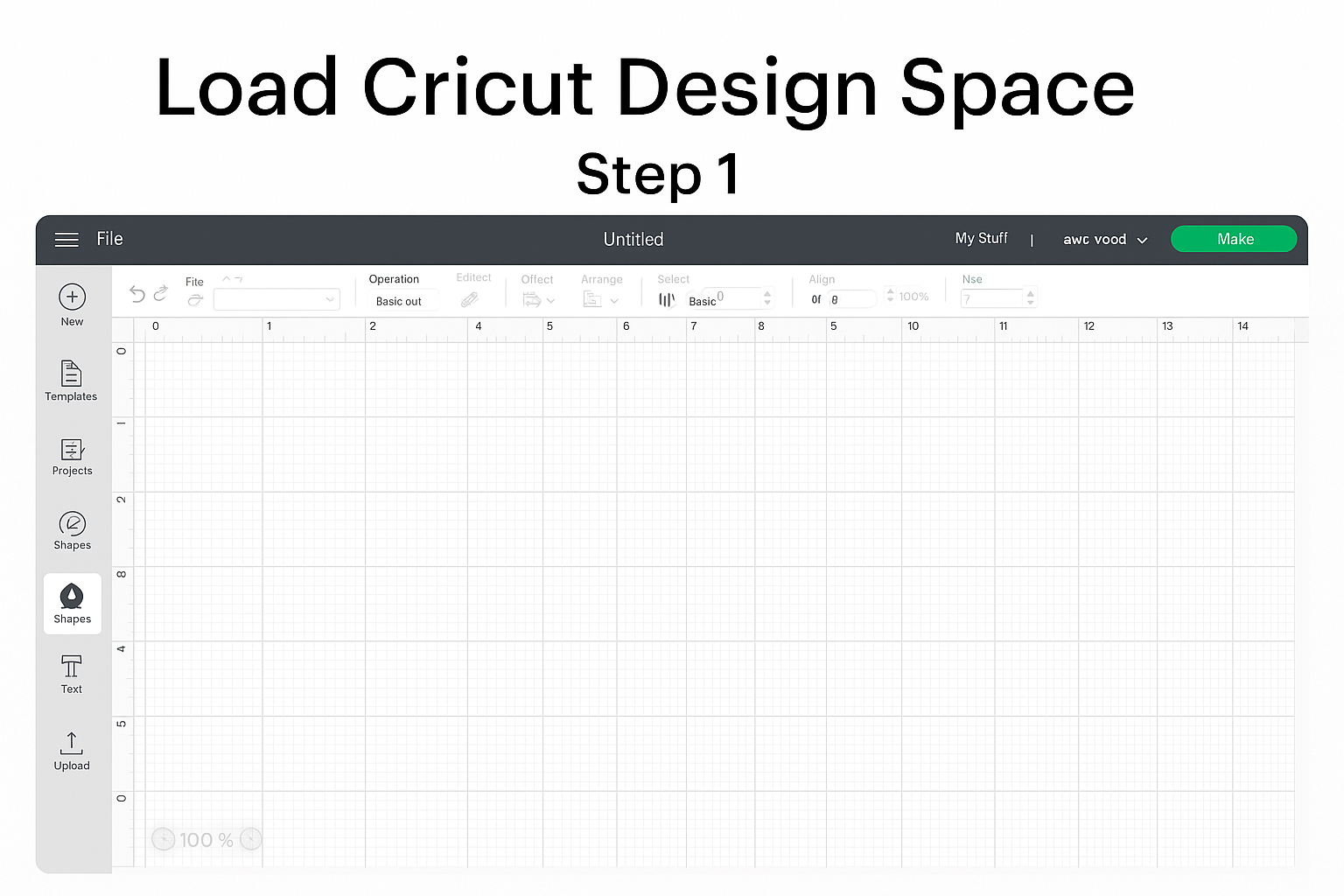
🧩 Step 1: Load Cricut Design Space
Open Cricut Design Space and start a new project. Familiarize yourself with the "Shapes" menu—you’ll be using it a lot.
🎯 Step 2: Make Paid-Style Shapes from Free Tools
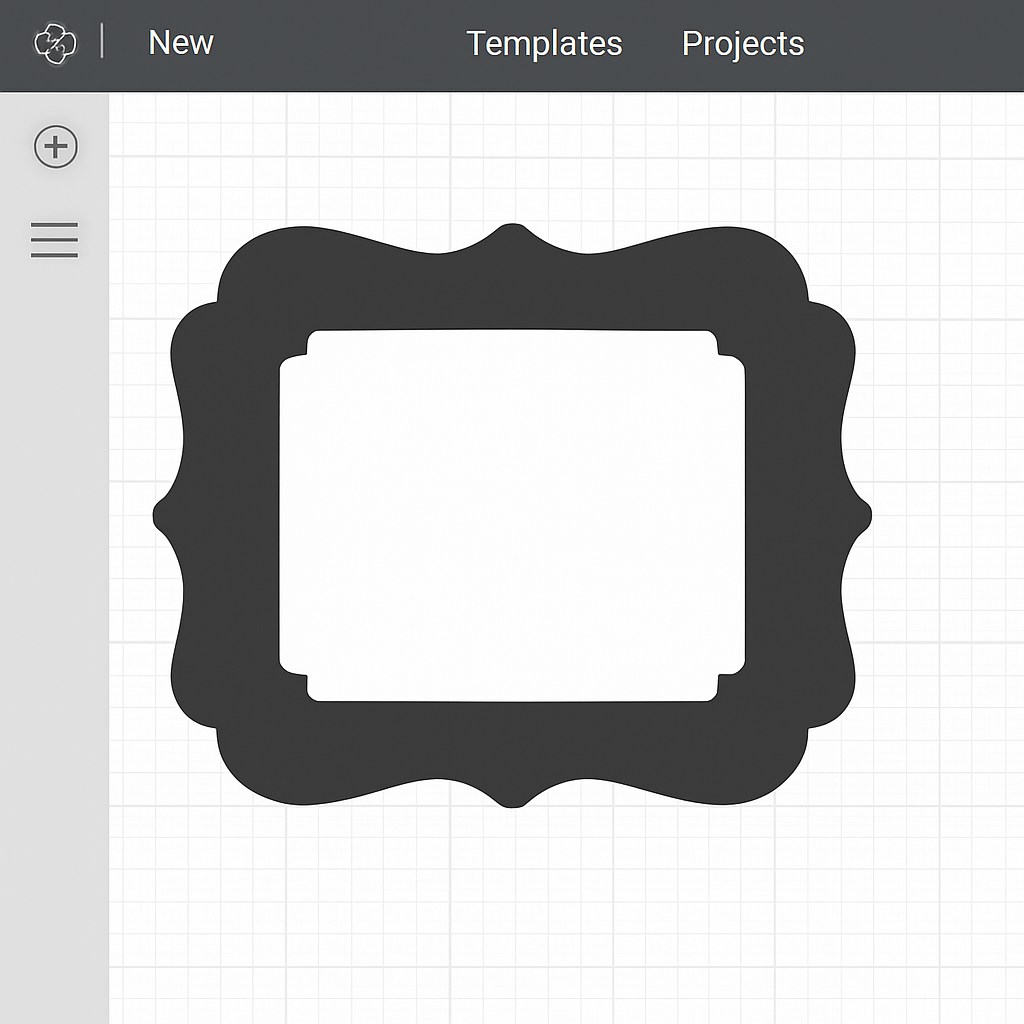
Want a shape that normally costs money? Here's how to recreate it:
- Grab a Circle and a Rounded Rectangle
- Change their colors for visibility
- Align them using “Align > Center”
- Use Slice to cut one from the other
- Delete the scraps and keep the new shape—it mimics a paid design!
🔁 Repeat this process to make:
- Decorative frames
- Tabs and banners
- Arrowheads and pointers
🐼 Step 3: Create a Cute Panda Head
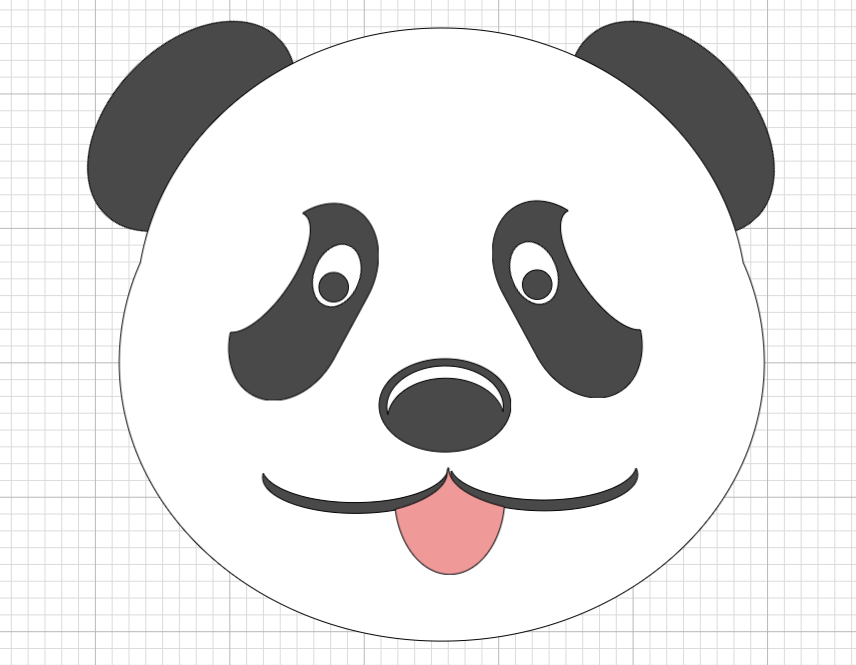
Now let’s build a panda head using nothing but basic shapes:
🐾 Panda Base
- Use a circle for the head and ovals for cheeks
- Weld them together for a custom face shape
👂 Ears
- Use small black ovals, adjusted and rotated, then send to back
👁 Eyes
- Make “black bean” shapes by slicing ovals
- Add white ovals and small black pupils
- Add a highlight dot for extra cuteness
👃 Nose & Smile
- Combine triangles and circles for the nose
- Use ovals sliced into crescents for the smile or a tongue
🎨 Pro Tip: Use Weld to combine multiple shapes into one animal face!
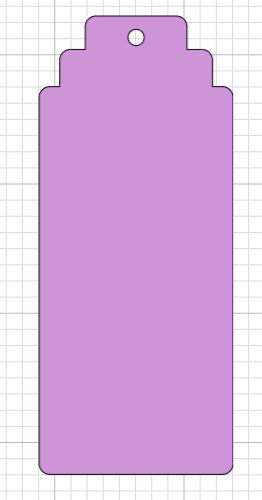
🏷️ Step 4: Make Gift Tags from Scratch
Tired of paying for tags? Make your own!
- Draw a rectangle (e.g., 2.5” x 1.7”)
- Add a triangle or hexagon to the top
- Align > Center the shapes and Weld
- Add a small circle (0.25") at the top for a hole
- Slice it out to create a tag-ready design
You now have a reusable gift tag base!
✍️ Step 5: Use Text as Shapes
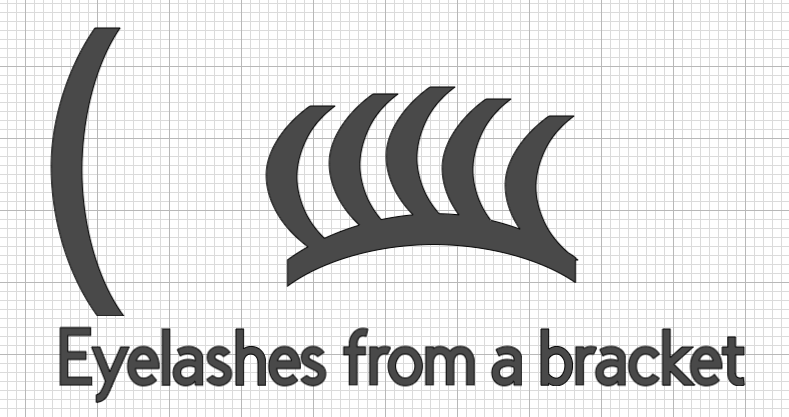
You can even convert text into shapes:
- Type a word or character (like brackets for eyelashes!)
- Change the font to a symbol-based one (e.g., Webdings or custom-installed fonts)
- Ungroup or Slice letters for use as embellishments or accessories
💡 Final Thoughts: Your Shapes, Your Rules
You don’t need a huge budget or a design degree to make professional-looking Cricut projects. With just a little creativity—and this step-by-step guide—you can design your own shapes, characters, tags, and decorations using nothing but the free tools built into Cricut Design Space. Every project is an opportunity to experiment. So go ahead—create a candy cane, build a jungle of animals, or customize all your holiday tags from scratch. The only limit is your imagination!
#CricutDesignSpace #FreeCricutProjects #CricutTips #CricutHacks #CraftWithShapes #CricutMade #CricutFun #PapercraftIdeas #DIYGiftTags #ShapeCrafting
You can grab an Access membership at anytime to use this feature.


1 Response to "Unlock Magic with Basic Shapes: How to Design Anything in Cricut Using Only Free Tools"
awesome tutorial thank you And the Panda is really cute.